
GA4's Built-In Anomaly Detection Missed Our Biggest Traffic Drop. An Agent Caught It.
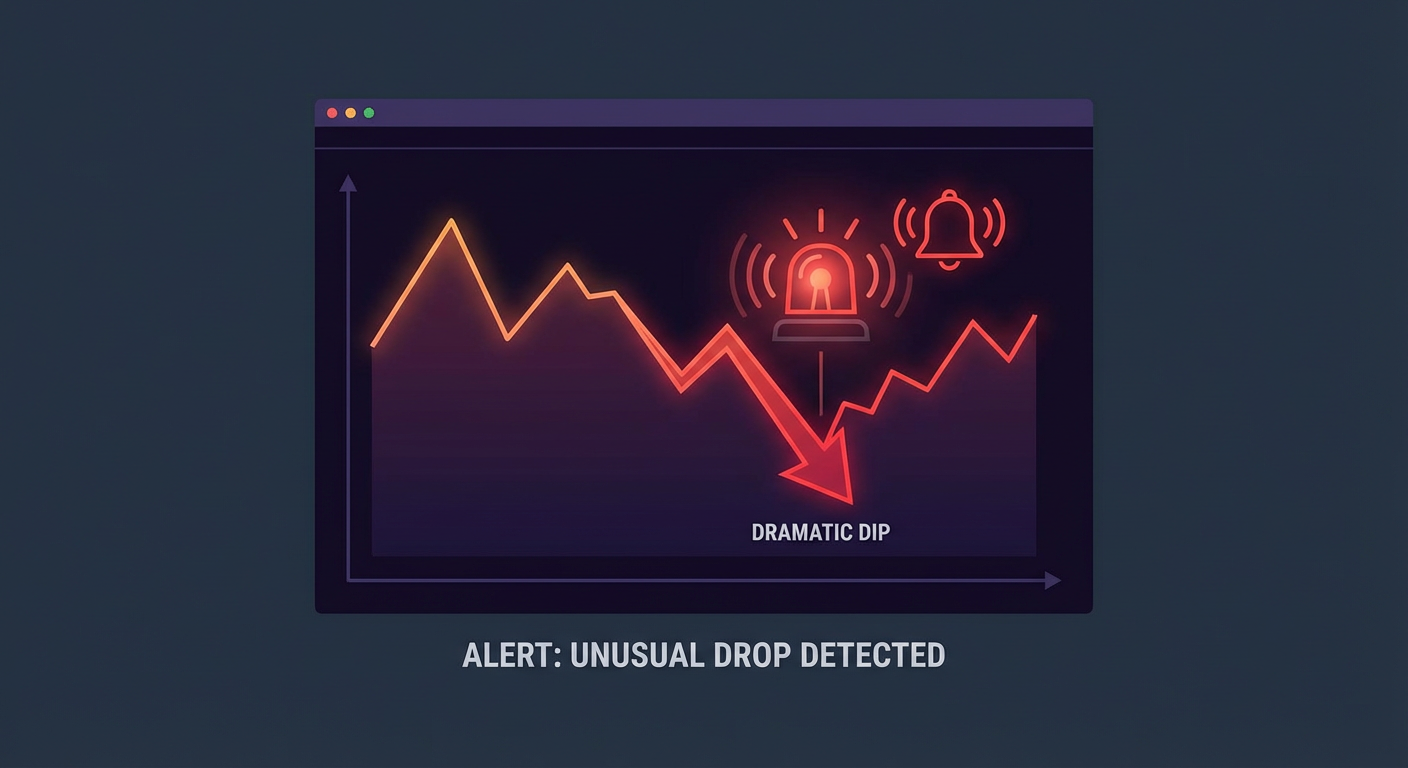
On a Tuesday in October, our organic traffic fell off a cliff. Sessions from Google search dropped 41% compared to the previous Tuesday. It was not a gradual decline. It was a step function. Monday was normal. Tuesday was not.
We did not notice until Saturday.
Kenji found it during a routine check of the GA4 dashboard. He was looking at the weekly numbers for a completely different reason and happened to glance at the traffic graph. The line had a visible dip starting Tuesday. Four days of sharply reduced organic traffic. Four days of lost leads, lost signups, lost revenue. Nobody had been alerted. Nobody had investigated. Nobody even knew.
The obvious question: doesn't GA4 have anomaly detection? Yes, it does. And it did not catch this.
What GA4's Anomaly Detection Actually Does
GA4 has an Insights panel that automatically surfaces anomalies in your data. Google's machine learning models look for unexpected spikes or drops across your metrics and present them as insight cards. "Sessions from organic search decreased by 41% compared to the same day last week" is exactly the kind of thing the Insights panel is designed to surface.
The problem is where it surfaces. GA4 Insights live inside the GA4 interface. They appear on the home screen when you log in. If you do not log into GA4, you do not see them. There is no push notification. No email alert for automated insights. No Slack integration. The insight existed. It was sitting there in the GA4 interface on Tuesday afternoon. But nobody on our team logs into GA4 on a random Tuesday afternoon unless they have a specific reason.
GA4 also has custom insights, which are closer to traditional alerts. You can configure a condition like "daily sessions drops by more than 20% compared to the same day last week" and GA4 will send you an email when it triggers. We had this set up. It did not fire.
Tomás dug into why. The custom insight was configured to compare against the previous week, but the previous week included a holiday Monday. Tuesday's traffic the prior week was inflated because some of Monday's activity spilled over. So the baseline was artificially high, and the 41% drop against that inflated baseline was outside the threshold we had set (30%), but the email notification had stopped working three months earlier when the GA4 property was migrated to a new Google Cloud project. Nobody had re-verified the email configuration.
This is the pattern with built-in alerting tools. They work until they don't, and you do not find out they stopped working until the thing they were supposed to catch has already happened.
What Actually Caused the Drop
Once Kenji flagged the issue on Saturday, Priya spent Sunday morning investigating. The root cause was a robots.txt change that our engineering team deployed on Monday evening as part of a routine infrastructure update. The new robots.txt blocked Googlebot from crawling three subdirectories that contained our highest-traffic blog content. The crawler stopped indexing those pages, search rankings dropped within 24 hours, and organic traffic fell accordingly.
The fix took 15 minutes. Revert the robots.txt, request reindexing through Search Console, wait. Traffic recovered to normal levels by Wednesday of the following week. But the damage from four days of reduced traffic was real. Priya estimated we lost roughly $8,200 in pipeline value based on our typical organic-to-signup conversion rate.
Four days and $8,200 because an alerting system failed silently.
Setting Up an Agent to Watch the Numbers
After the October incident, we built an alert system that does not depend on someone opening a dashboard. The GA4 Realtime Site Monitor agent runs at configurable intervals, pulls traffic data from the GA4 Data API, and compares it against historical baselines. When something looks wrong, it sends a message to the team's Slack channel with the specifics.
The difference from GA4's built-in insights is in how the comparison works. GA4's automated insights use a single comparison period that you cannot customize. The agent uses multiple baselines: same day last week, same day four weeks ago, and a 30-day rolling average. A traffic drop has to be anomalous against at least two of the three baselines to trigger an alert. This eliminates the false positives from holiday weeks, seasonal patterns, and one-off events.
The agent also provides context that GA4's insight cards do not. When it detects a drop, it does not just say "organic traffic decreased 41%." It breaks down the drop by landing page, by geography, by device. It checks whether the drop is concentrated in a few pages or spread across the site. It looks at whether other traffic sources are also affected or whether the anomaly is source-specific.
In the October scenario, the agent would have detected the organic traffic drop by Wednesday morning at the latest. The alert would have included: organic sessions down 41% vs last Tuesday and down 38% vs four-week average. Drop concentrated in three URL paths (/blog/guide-a, /blog/guide-b, /resources/tool-c). Other traffic sources unaffected. Suggested investigation: check for crawl issues or indexing changes affecting these paths.
That level of context points you directly at the problem instead of sending you on a fishing expedition through GA4's interface.
Custom Thresholds for Different Metrics
Not every metric deserves the same sensitivity. A 10% drop in sessions on a Sunday is normal variance. A 10% drop in conversion rate on a Tuesday is a five-alarm fire. GA4's custom insights treat all metrics with the same threshold logic, which means you either set the threshold low enough to catch real problems (and get flooded with noise) or high enough to reduce noise (and miss real problems).
The agent handles this by letting you set different thresholds for different metrics and different time periods. Our configuration looks something like this. For sessions and pageviews, the alert threshold is a 25% drop compared to baseline, because traffic fluctuates naturally. For conversion rate, the threshold is 10%, because conversion drops are almost always actionable. For revenue per session, the threshold is 15%. For bounce rate, the threshold is a 20% increase.
We also have day-of-week awareness built in. Weekend traffic is naturally lower, so the baselines adjust. A Saturday with 40% fewer sessions than Friday is not anomalous. A Tuesday with 40% fewer sessions than the previous Tuesday is.
Diana, who runs our operations team, said the thresholds took some tuning during the first two weeks. "We started too aggressive and got six alerts in the first three days. Most were noise. We loosened the session threshold from 15% to 25% and the noise stopped. The real alerts still come through." Since the tuning period, we have had two real alerts in four months. Both were legitimate issues that needed attention. Zero false positives.
What the Agent Catches That GA4 Misses
Beyond simple threshold alerts, the agent identifies patterns that GA4's Insights panel is not designed to surface.
Gradual declines are the most common. A metric that drops 3% per week for six weeks has declined 17% total, but no single week triggers a threshold alert. GA4's anomaly detection is tuned for sudden changes. It does not track trend lines. The agent tracks a 30-day rolling average specifically to catch slow degradation. In February, it flagged that our mobile conversion rate had declined for four consecutive weeks. No single week was alarming. The four-week trend was.
Priya investigated and found that a checkout page redesign deployed in mid-January had a layout issue on smaller screens. The buy button was partially hidden below the fold on phones with screens under 6 inches. Conversion on those devices had dropped 23% since the deploy. The fix took an hour. Without the trend alert, we might not have noticed for another month.
Correlation alerts are another category. When organic traffic drops at the same time as a spike in 404 errors, those two things are probably related. GA4 surfaces each metric independently. The agent looks at them together and says: "Organic sessions down 12% and 404 errors up 340% since yesterday. These may be related. Check for broken URLs in recently modified pages." That connection between metrics is the kind of thing an experienced analyst would catch. Most teams do not have an experienced analyst staring at GA4 all day.
The Cost of Not Watching
The October incident cost us an estimated $8,200 in pipeline value over four days. The February mobile checkout issue cost roughly $3,100 per week for the four weeks it went undetected, so about $12,400 total. Those are the two incidents we know about. There may have been others that resolved themselves before anyone noticed, and we will never know the cost of those.
The agent runs continuously and costs a fraction of what a single missed incident costs. The math is simple and it is not close. Every monitoring tool looks expensive until you calculate the cost of the thing it would have caught.
Kenji, who found the October traffic drop by accident on a Saturday, put it this way: "I got lucky. The next time, nobody might be checking the dashboard on a random Saturday. That is not a monitoring strategy. That is hoping."
Try These Agents
- GA4 Realtime Site Monitor -- Monitor GA4 traffic against custom baselines and get alerts with context when anomalies hit
- GA4 Weekly Traffic Report -- Automated weekly traffic analysis with trend detection and week-over-week comparisons
- GA4 Channel Attribution Analyzer -- Track channel performance and catch attribution shifts before they become problems
- GA4 Content Performance Auditor -- Audit content pages for traffic drops, bounce rate changes, and conversion trends